Plugin · AU & VST3 · macOS & Windows

Drop it on every mic.
Press play. Done.

Clean, natural dialogue from every lavalier — automatically. No gates to tune, no volume rides, no comb filtering.

Download Latest version · Other platforms
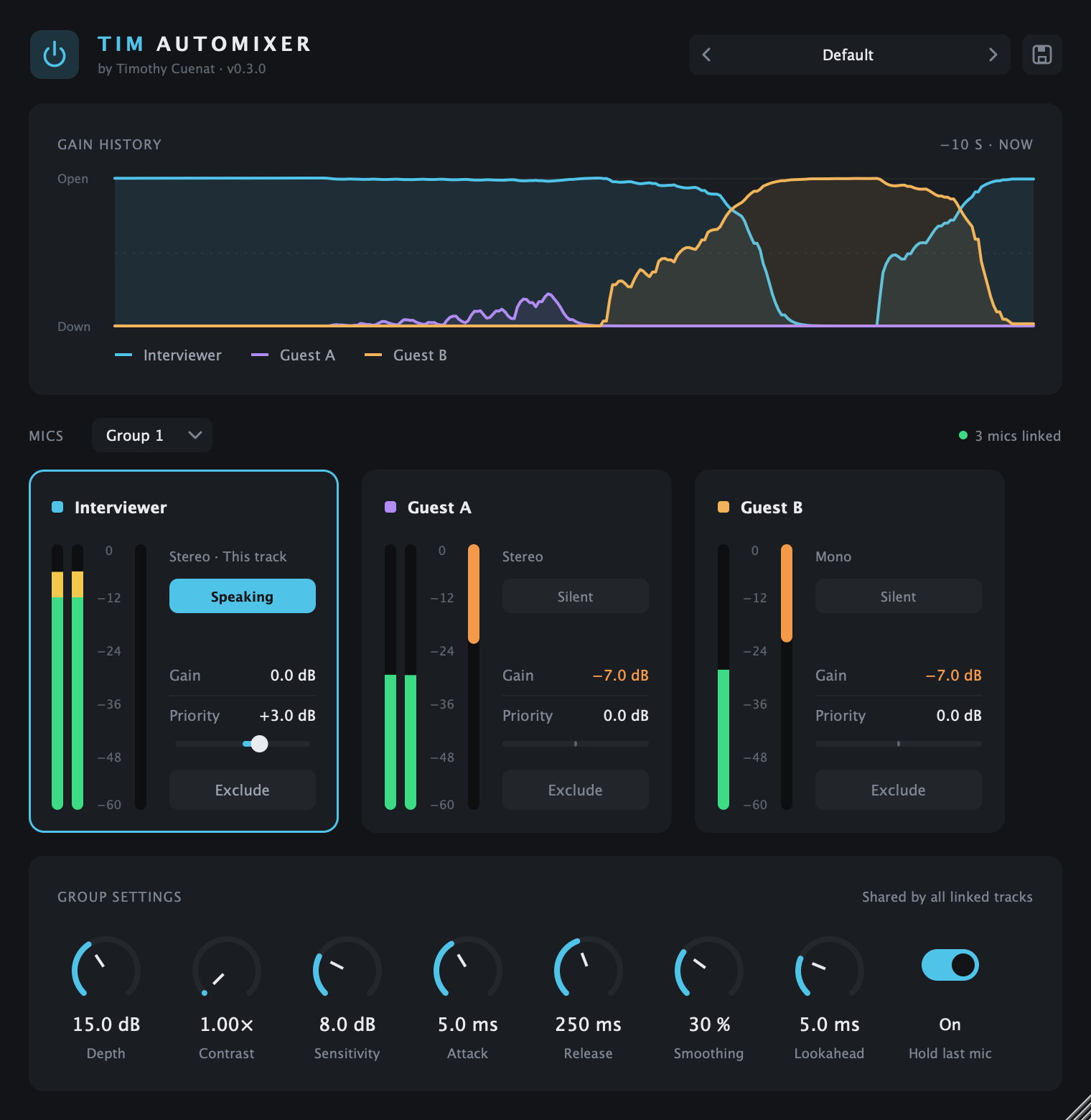
TIM Automixer plugin window: gain history, one strip per microphone and group settings
Three steps

As simple as it gets

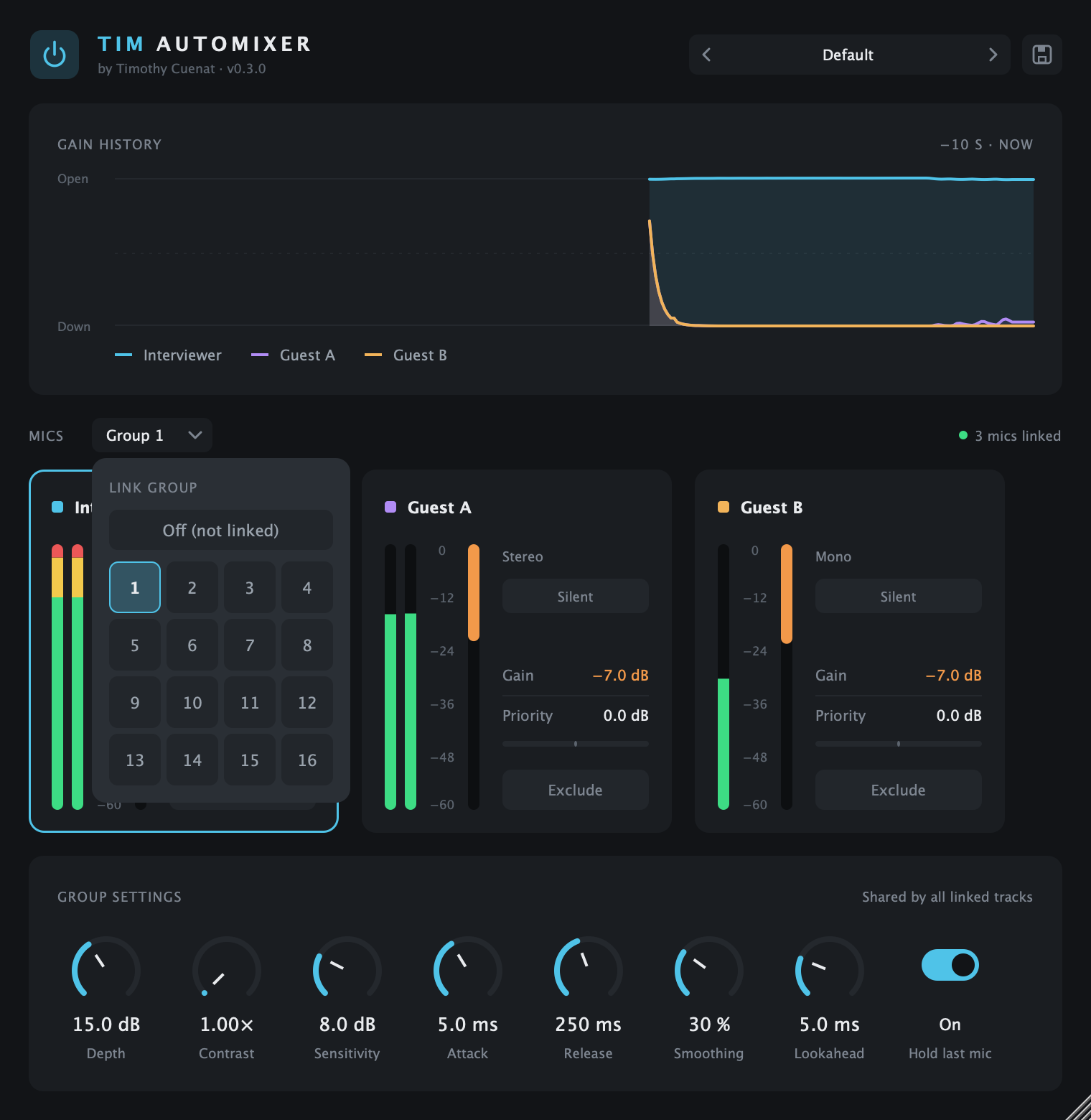
No routing, no sidechain, no setup. Every instance finds the others on its own.

1

Drop it on every mic

Insert TIM Automixer first on each lavalier track — in DaVinci Resolve, Logic, Premiere, Reaper…

2

Press play

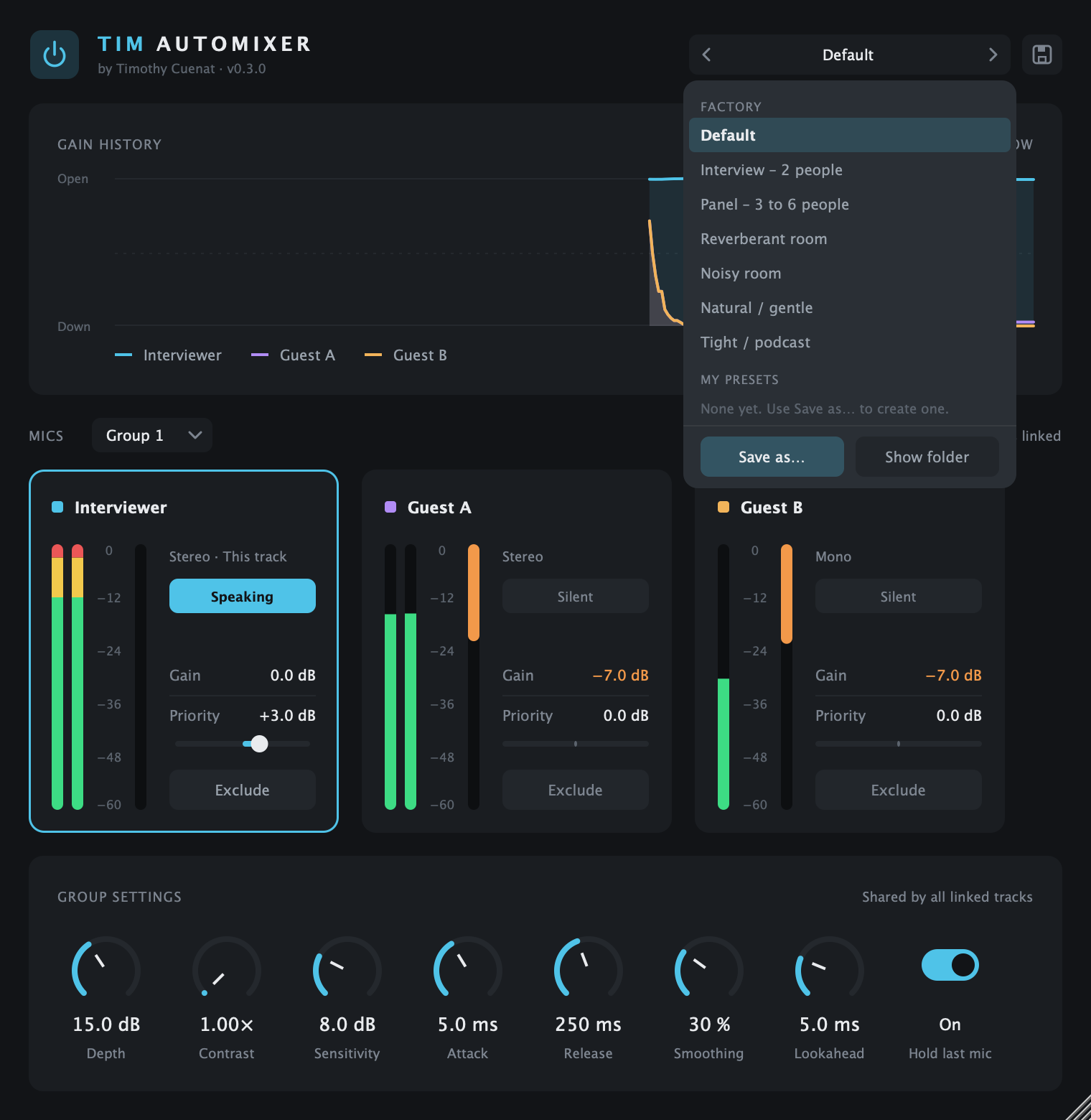
The tracks link automatically. Pick a preset like Interview – 2 people if you like.

3

Enjoy clean dialogue

The person talking stays open, the others are turned down — smoothly, without clipping a single word.

How it works

It compares the mics, like your eyes do on the waveforms

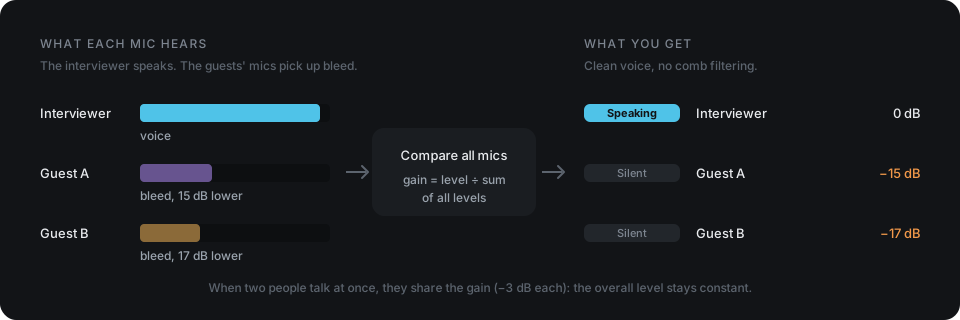
Every voice also reaches the other mics — later and quieter. That bleed makes dialogue hollow and phasey. Gates can't fix it: a voice moves over 30 dB, bleed is only 10–20 dB below.

  • Each mic is compared with all the others, never with a fixed threshold.
  • Gain is shared: the speaker stays open, the others go down by their level difference.
  • When two people talk at once, they share the gain — the overall level stays constant.
Diagram: each mic hears the speaker and bleed; the automix compares all mics and keeps only the speaker open
Features

Made for real-world interviews

Rooms you don't control, mics close together, people talking over each other.

Voice-band detection

Listens only to 150 Hz – 5 kHz and learns each mic's room noise. Rumble, hiss and air-con are ignored.

Never clips a word

Lookahead opens the mic just before the first syllable. Latency is reported and compensated by your host.

Natural transitions

Smoothing keeps voices steady; Hold last mic keeps the room tone alive during pauses.

Contrast & Depth

Push bleed further down in reverberant rooms, or keep it gentle and airy. Up to 8 mics per group.

See the conversation

Gain history, meters and a Speaking light per mic, in each mic's colour.

Presets & tooltips

Seven factory presets plus your own. Every control explains what it does and when to use it.

A closer look

Everything at hand

Download

Get TIM Automixer

Install, restart your software, search for “TIM” in the effects list.

macOS

macOS 11 or later · Apple Silicon & Intel · AU + VST3

Download installer (.pkg)

or the .zip to install by hand

macOS says the installer can’t be opened?

Right-click the file → Open → Open. If your software doesn’t list the plugin after installing, paste this in the Terminal and restart the software:

sudo xattr -dr com.apple.quarantine "/Library/Audio/Plug-Ins/Components/TIM Automixer.component" "/Library/Audio/Plug-Ins/VST3/TIM Automixer.vst3"

Windows

Windows 10 / 11 · 64-bit · VST3

Download installer (.exe)

or the .zip to install by hand

“Windows protected your PC”?

Click More info → Run anyway. The plugin is installed in C:\Program Files\Common Files\VST3 and can be removed from Settings → Apps.

Latest version · All releases & notes · Use the same format (AU or VST3) on every track of a conversation.